
 UCloud
User and Project Management
In this article, we will go through how UCloud/IM interfaces with the identity management system of your environment. In particular, this is going to deal with how users and projects are synchronized and mapped between UCloud and your system.
User Mapping
User mapping is the process of linking a UCloud identity to a local identity. Recall from a previous chapter that UCloud/IM for Slurm uses your local identities on the HPC system for enforcing authentication and authorization. From the point of view of your system, users coming from UCloud are simply ordinary users of your system. They can do exactly the same actions as if they had used SSH to access your system. Nothing less, nothing more. This has the benefit of simplifying your infrastructure while allowing your users to access the system through more traditional means, such as SSH.
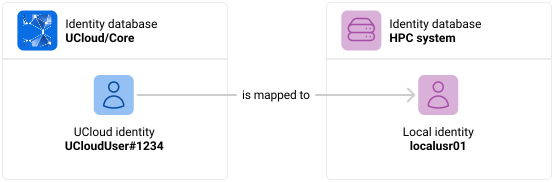
UCloud identities are mapped into local identities. This way, the UCloud/IM (server instance) can spawn user instances running as a local identity in response to requests from the user. This ensures that UCloud users can only do the actions as they could by accessing through SSH.
Establishing a Mapping
UCloud/IM is be responsible for automatically synchronizing users, projects and resource allocations from UCloud/Core into the service provider. It achieves this using the supporting systems in UCloud/Core, these are described in detail in this article. In short, UCloud has an advanced system for managing resource allocations.
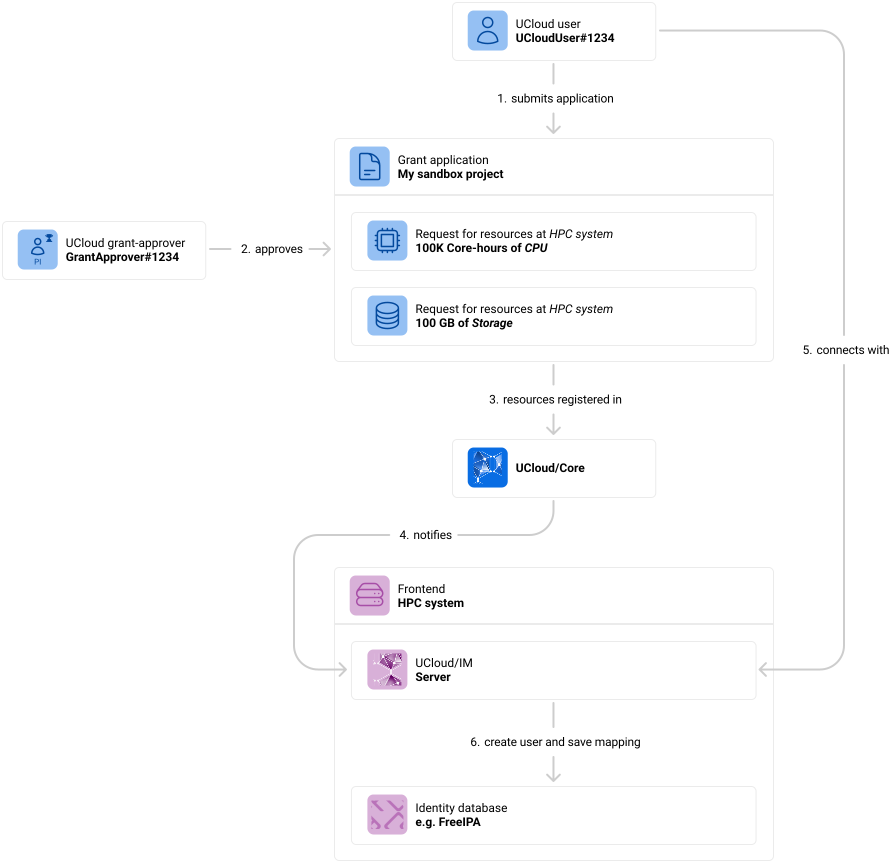
UCloud has an advanced system for managing resource allocations. This system used in combination with UCloud/IM allows for fully automatic management of users, projects and resource allocations.
The process is as follows:
-
A user submits a grant application. The application describes the project and along with it a request for resources at one or more service providers. At this point, because the user has no resources at
HPC systemthey cannot consume any of the resources. Not until a user has been granted a resource allocation can they use a service provider. -
A grant-approver decides to accept the application. Who can approve application is up to the service provider. A service provider can decide to manage all applications themselves, or they can delegate this responsibility to someone else.
-
The resources created from the successful application are registered in UCloud/Core.
-
UCloud/Core notifies the service provider. Whenever a workspace is updated with respect to their resource allocations, a notification is sent to the service provider. The message is intercepted and handled by UCloud/IM (Server). A user mapping is not yet established.
-
The user connects with the provider. Once a user has received at least one resource allocation at a provider, they are allowed to connect to it. The user connects to the provider by clicking the appropriate button in the UCloud user-interface. This will send a message to the service provider (authenticated by UCloud/Core).
-
The service provider synchronizes the UCloud identity with the local identity database. The result of this is a user being created in the local identity database. A mapping is saved in UCloud/IM’s internal database and UCloud/Core is notified that the connection was successful. The UCloud user can now consume resources on the service provider. You can read more about different integrations later in this article. It is the responsibility of each integration to determine what the local username is. See the individual integrations for more details.
Project Mapping
Project mapping, like user mapping, is the process of mapping a UCloud project into something corresponding at the service provider. In UCloud/IM for Slurm that something is a Unix group. The name of the resulting Unix group depends on the integration used for managing projects and users. The figure below illustrates how projects are mapped:
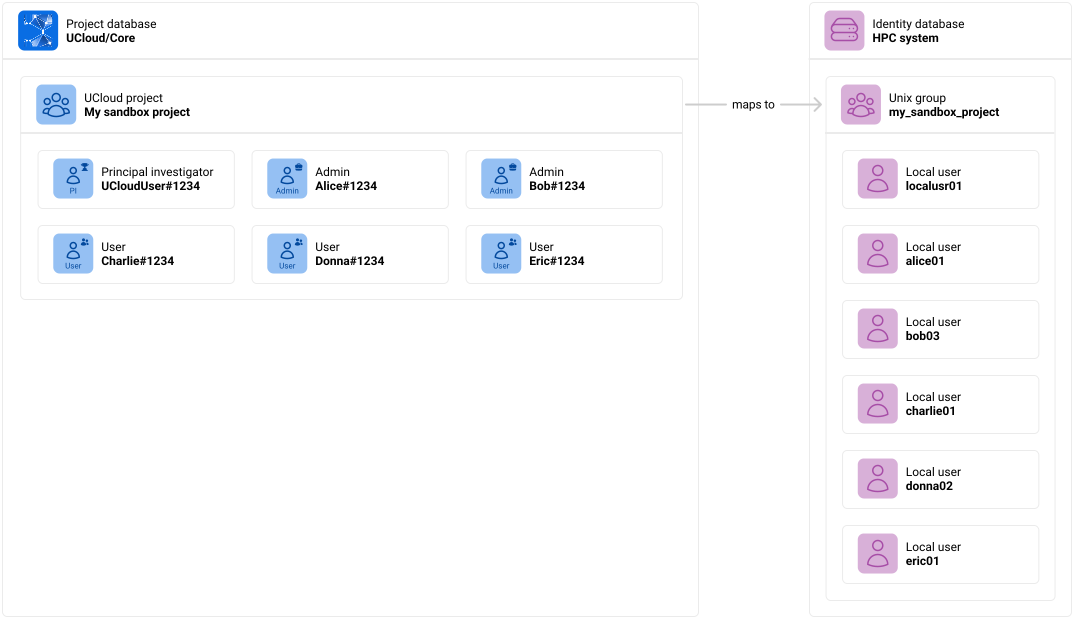
UCloud projects are mapped into corresponding Unix groups.
There are some notable differences between what a UCloud project can support and what is actually supported in projects using UCloud/IM for Slurm.
- UCloud projects support further grouping of members, this is not supported by UCloud/IM for Slurm.
- Project roles are not synchronized to the HPC system, but can still be used for project management in UCloud/Core.
- Members of a UCloud project that have not yet connected to the provider, is not present on the provider.
- Once a UCloud user connects to the provider, they will automatically be added to the corresponding Unix groups.
Integrations
FreeIPA
FreeIPA is an open source identity management system which utilizes various open-source components, such as: 389DS, Kerberos, ntpd and more. UCloud/IM for Slurm is capable of synchronizing users and projects into FreeIPA. Installing and deploying FreeIPA is outside the scope of this document, instead we refer to FreeIPA’s own documentation.
The integration works by using FreeIPA’s JSON-RPC API. JSON-RPC support was added in version 4 and is included in the default configuration.
Creating a service account
In order to do this, UCloud/IM requires a service account. You can create this account from the web interface by first creating a service user. A password is required for this user, since it will be used for authentication against the API.
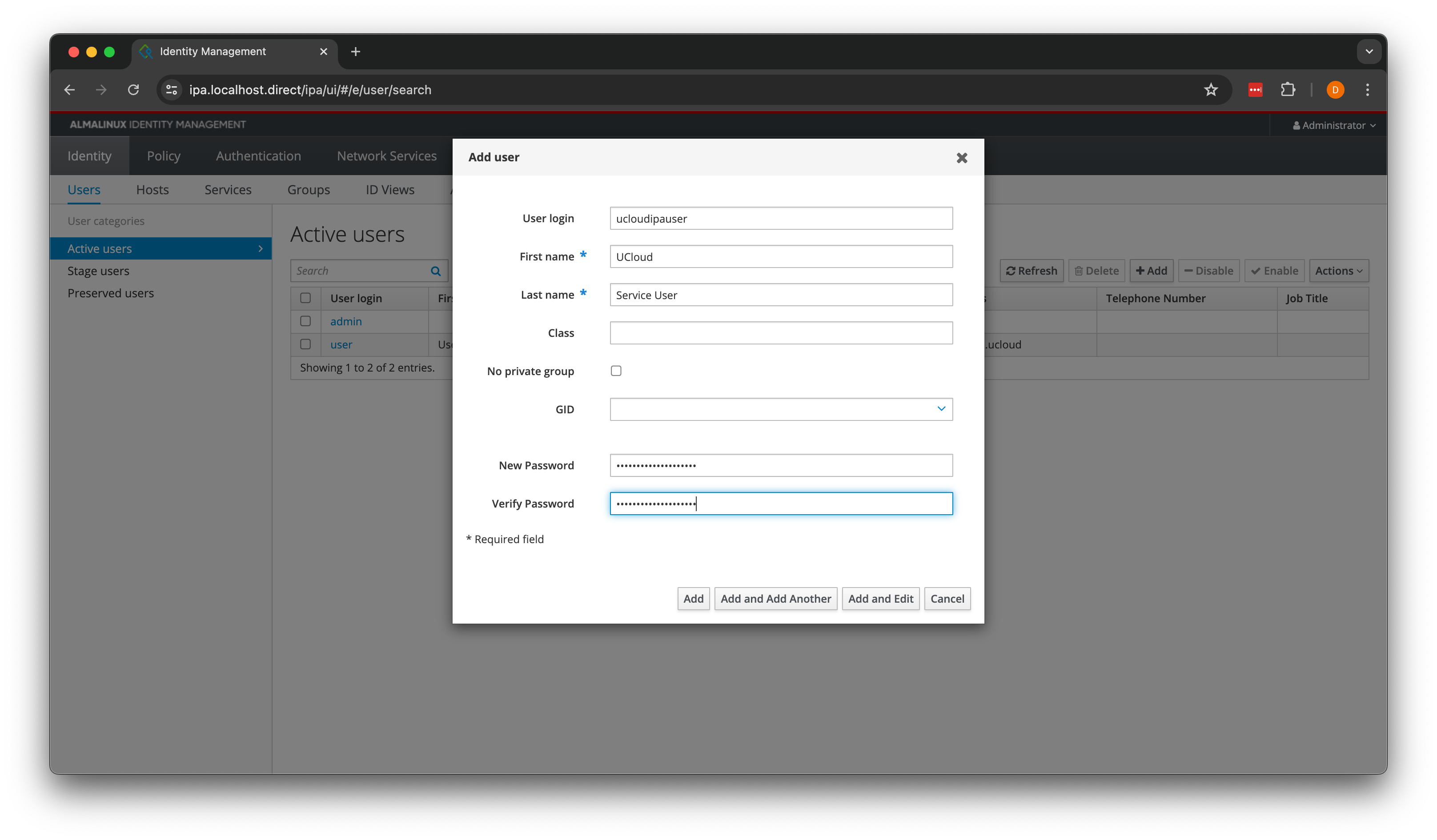
Start by creating a new user. You can do this by going to “Identity” / “Users” and clicking on “Add”. Fill out the form and finish by clicking on “Add”.
Next, we need to assign the appropriate permissions to the service user. To do this go to “IPA Server” /
“Role-Based Access Control” and select “User Administrator” followed by assigning the ucloudipauser this role.
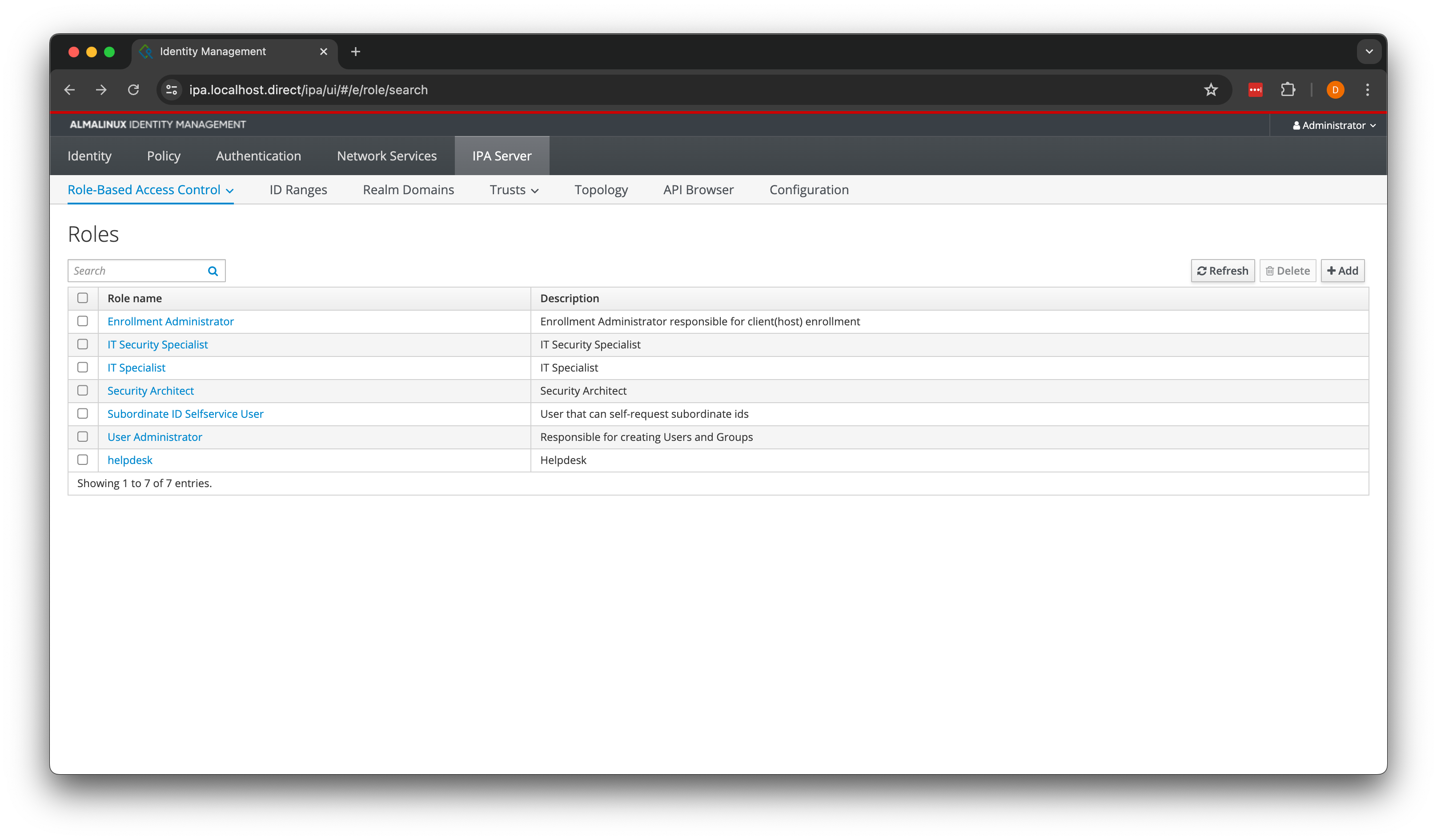
Selecting the IPA server role. Found by going to “IPA Server” / “Role-Based Access Control”.
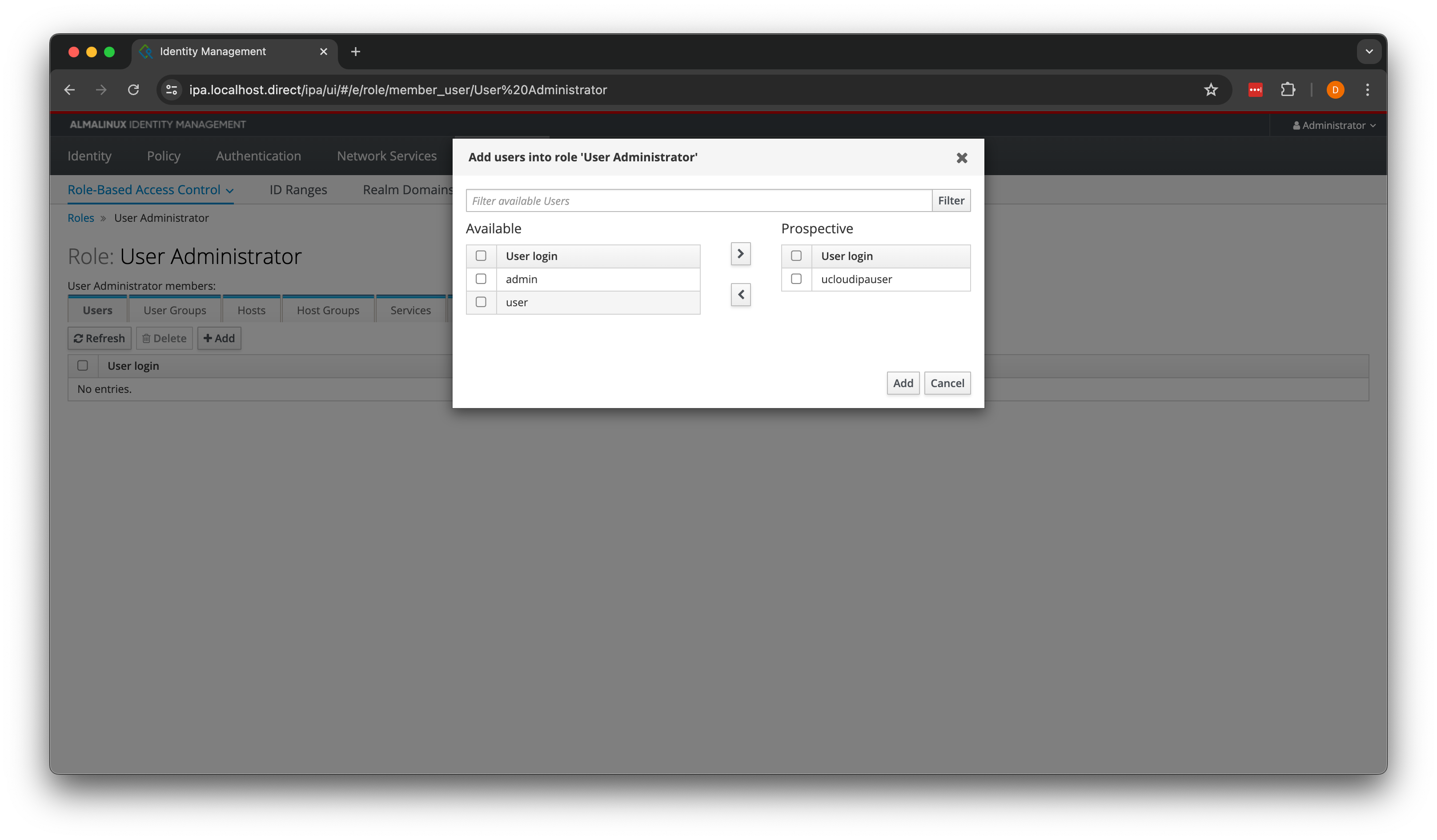
Assigning the IPA server role to the service user. Found by clicking on “Add” in the “Users” tab.
Configuring the integration
Start by enabling the FreeIPA integration in the identityManagement section in /etc/ucloud/config.yml:
services:
  type: Slurm

  identityManagement:
    type: FreeIPA
The FreeIPA section is enabled by setting the type property of identityManagement to FreeIPA.
Next, you must configure how to use the API. This is configured in /etc/ucloud/secrets.yml. If you do not already have
this file, then you can create it:
$ sudo touch /etc/ucloud/secrets.yml
$ sudo chown ucloud:ucloud /etc/ucloud/secrets.yml
$ sudo chmod 600 /etc/ucloud/secrets.yml
The secrets.yml file has special permissions which must be set correctly.
Once created, you can add the freeipa section which configures it.
freeipa:
  url: https://ipa.ucloud   # Replace this with the hostname of your FreeIPA instance
  username: ucloudipauser   # Update this to match the name of your service account
  password: adminadmin      # Update the password to match your service account
  verifyTls: true           # (optional) Verify SSL certificate
  caCertFile:               # (optional) Use this CA certificate for SSL verification
  groupName:                # (optional) Add all users to this user group (defaults to ucloud_users)
  projectStrategy:          # (optional) Should be "Default", "Date" or "UUID"
The configuration required for FreeIPA. Remember to change the values such that they match your environment.
Naming Policies
The projectStrategy configuration property allows you to control how to name new users and
projects. Keep in mind that the naming policy is only used when users and projects are created. This
means that if you make changes to the naming policy then already existing projects and users will
not be changed in any way. UCloud/IM allows you to change the policy since it stores the ID from
creation and not the computed name.
| Policy | Description |
|---|---|
|
|
The default naming policy will attempt to create alphanumeric names which closely resemble the name of the user and project, while remaining POSIX compliant. Users: Usernames use the following format: The The names will always use pure ASCII. A transformation is made to resemble the closest equivalent as possible. For example: Usernames are cut off to ensure they do not become too long. Take for example this exaggerated example: For users where their last name is not apparent, their first name is used instead. Projects: Projects use a similar format: The cleaning process is similar to the username cleaning process, except it also handles various form of spaces and replace them with underscores. Below is a number of examples: |
|
|
Projects will be named using the current year and month, in the format: For example: |
|
|
Projects will be named using the first part of the UCloud UUID for the project, in the format: For example: |
Breakdown of operations executed by UCloud/IM
In this section we will break down the exact operations invoked by UCloud/IM when managing your users and projects. This section is intended to help you understand how UCloud/IM will interface with your system and in which situations it might conflict with other systems.
It is important to understand that this is all that the FreeIPA integration will do. Users and groups can be created in FreeIPA without UCloud/IM and as long as it does not conflict with the content of this section, the UCloud/IM will not interfere with those entities.
| Trigger | Description |
|---|---|
| User connected |
1. Check if the user already exists This is done by looking up users which have an If the user exists, re-establish a mapping between the UCloud user and the existing identity and do not run any of the remaining steps. 2. Create a user with the username specified by the naming policy 3. Add the newly created user to the As explained in the installation procedure, UCloud/IM for Slurm depends on sudo to be configured to
allow changing user to any member of the 4. Save the mapping in UCloud/IM’s local database This will allow all components of UCloud/IM to determine what the mapping is. It will also allow the project creation logic to lookup the UID of users from their UCloud username. 5. Run the add member trigger of all projects the user belongs to See the “project updated” trigger for details. |
| Project updated |
Note that this is triggered everytime a project is updated, including when it is first created. You will only receive notifications about projects that have an allocation on your provider. 1. Check if the project already exists This is done by looking up in UCloud/IM’s local database to check if the project has already been created. This will return the corresponding Unix GID. If the project already exists skip to step 3. 2. Create the project using a name specified by the naming policy The resulting Unix GID is saved in UCloud/IM’s local database such that it will be found by step 1 during the next update. Following the group creation, the following command is executed by UCloud/IM (Server): 3. Add new members (repeated for each new member) UCloud/IM keeps track of which members are added to or removed from a project. This step is repeated for each new member added to the project. If no members are added, then this step is skipped. If the member added to the project has not yet connected to the provider, skip this member. 4. Remove members no longer part of the project (repeated for each member) UCloud/IM keeps track of which members are added to or removed from a project. This step is repeated for each member. If no members are removed, then this step is skipped. If the member removed from the project has not yet connected to the provider, skip this member. |
| User disconnects |
TODO Remove user from all projects |
Scripted
This integration is another script integration. Script integrations allow you to fully customize all aspects of
user and project creation. It is entirely up to you to create these scripts. All scripts will be invoked with a single
argument, which is a path to a JSON file. The contents of the JSON file will depend on the script, see below for
details. All scripts are expected to return the response as a JSON object on stdout. Detailed error messages and
debug information should be printed to stderr. In case of errors a non-zero exit code should be returned.
In order to configure this integration, you must first configure it:
services:
  type: Slurm

  identityManagement:
    type: Scripted
    onUserConnected: /opt/ucloud/scripts/onUserConnected
    onProjectUpdated: /opt/ucloud/scripts/onProjectUpdated
The Scripted integration is enabled by setting the type property of identityManagement to Scripted and providing
the relevant scripts.
Note that the scripts pointed to in the configuration file is your choice. You can point it to any script of your choosing. The script does not have to reside in any specific folder. The script must be readable and executable by the UCloud/IM (Server) user. They do not have to be invoked by any of the user instances.
Script: onUserConnected
The onUserConnected script is invoked every time a user connects to this service provider. As input, it will receive
the UCloud the username, as well as a parsed version of the UCloud username. This input will suggest a username using
the default naming policy from the FreeIPA integration. The suggested username will not contain the two-digit number at
the end.
This script must check if the UCloud user has registered before and in that case return the old UID. It is the responsibility of the script to save this information somewhere it can be retrieved later. In case the user has not registered before, then the script must:
- Create a new user and be ready to return its UID
- Add the new user to the
ucloud_usersgroup
| Request |
|
|---|---|
| Response |
|
| Example request |
|
| Example response |
|
Script: onProjectUpdated
The onProjectUpdated script is invoked every time something related to a project occurs. At the
time of writing, the following events trigger the onProjectUpdated script:
- Project creation.
- Archival or unarchival of a project.
- Members were added or removed from a project.
- The roles of one or more members changed.
- A project group was created, renamed or deleted.
- Members were added or removed from a group within the project.
TODO As far as I can see notifications are not sent when a project is renamed. Is this intentional?
It is the responsibility of the script to take appropriate action, and to save this state, depending on how your system is configured. An example of this would be to map this information to Unix groups, or make appropriate calls to your identity management system.
Below is an representation of request and response types, and examples, respectively.
| Request |
|
|---|---|
| Response |
No response required |
| Example request |
|
| Example response |
No response |