
 UCloud
Application management
This chapter will contain a description of how to upload and manage applications for a service provider. UCloud provides a catalog of applications which a service provider can subscribe to, assuming that they live up to certain infrastructure requirements.
The Application Catalog
The UCloud application catalog enables users to browse a comprehensive list of available software. Each application within the catalog is a UCloud abstraction that defines a piece of software, its parameters, and its startup process.
UCloud maintains an up-to-date catalog of applications commonly used in high-performance computing systems. The entire application catalog is automatically available when using the Kubernetes integration. You do not need to configure the service provider for this. Images will automatically be pulled from the UCloud Docker registry.
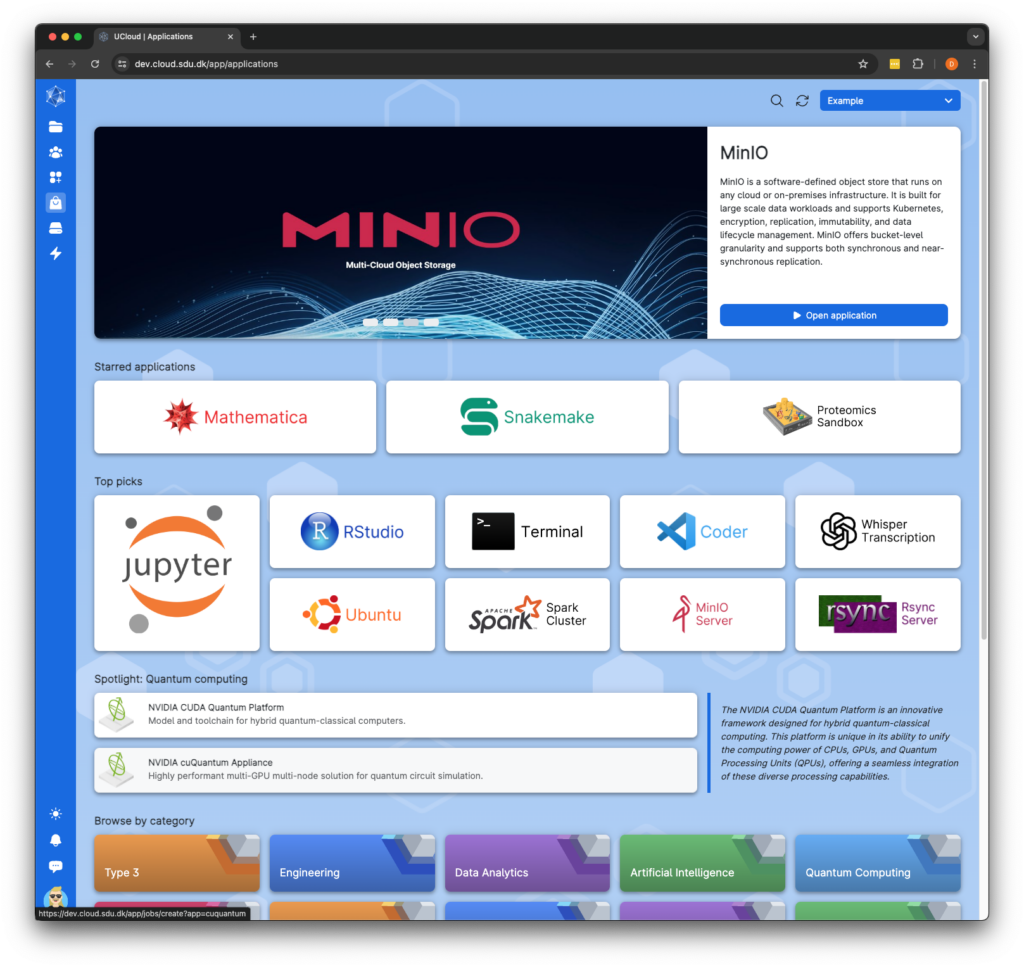
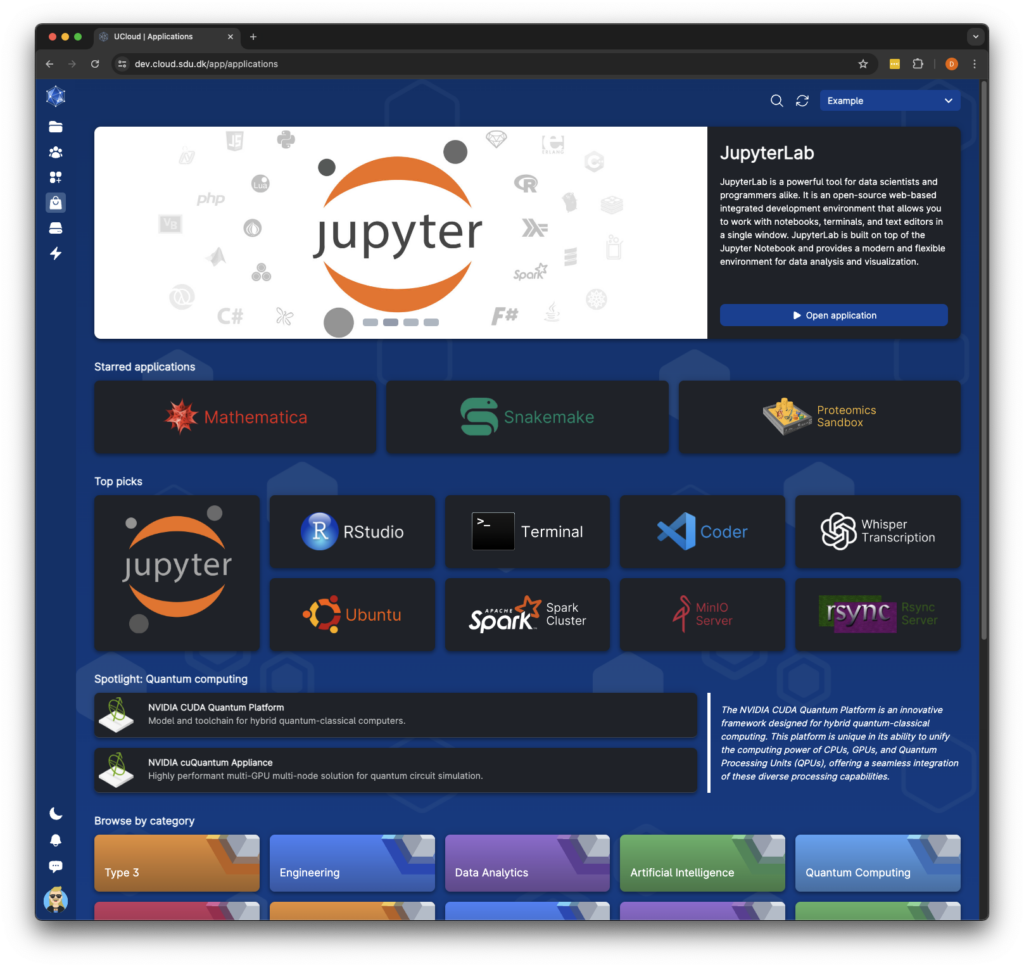
The UCloud application catalog showing a selection of applications available at a service provider.
The Structure of an Application
UCloud applications describe how to obtain, load and invoke a piece of software. This information is supplied in a YAML document which has several sections. These sections are illustrated in the diagram below.
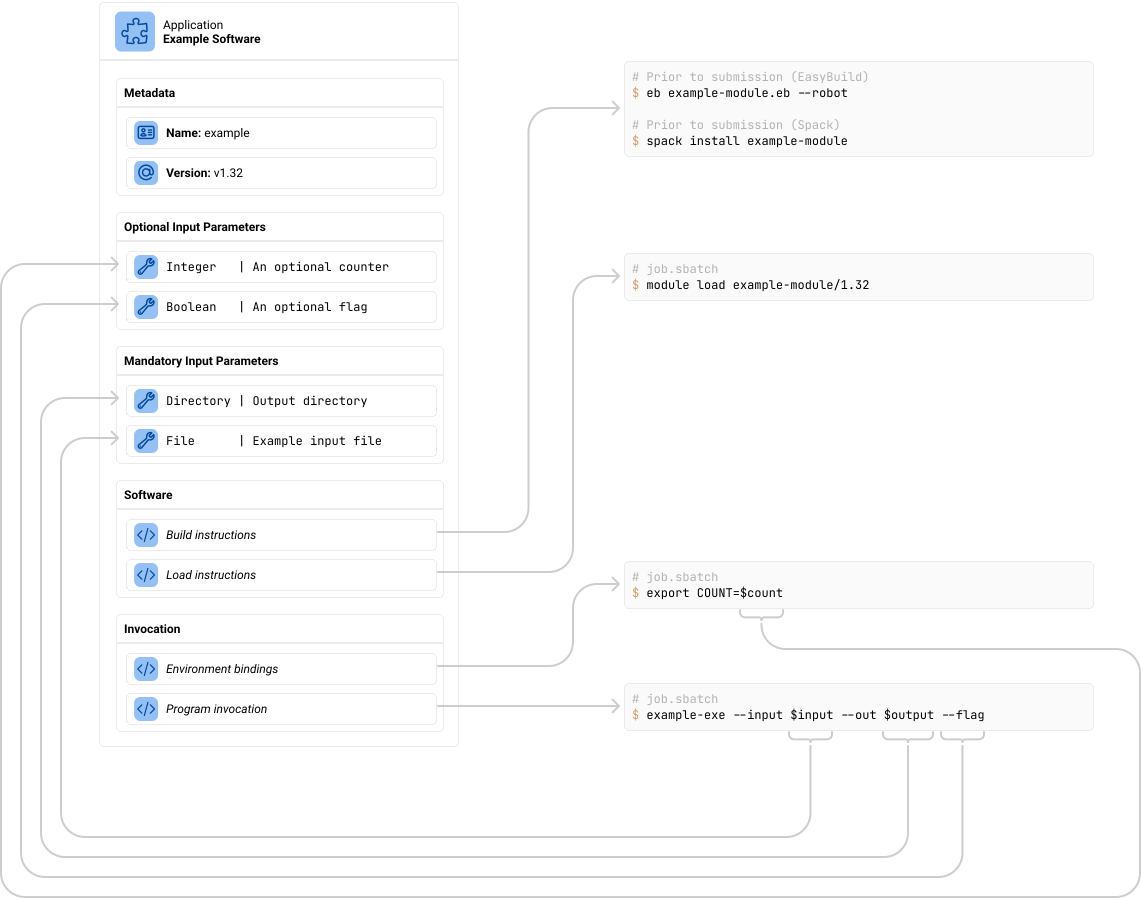
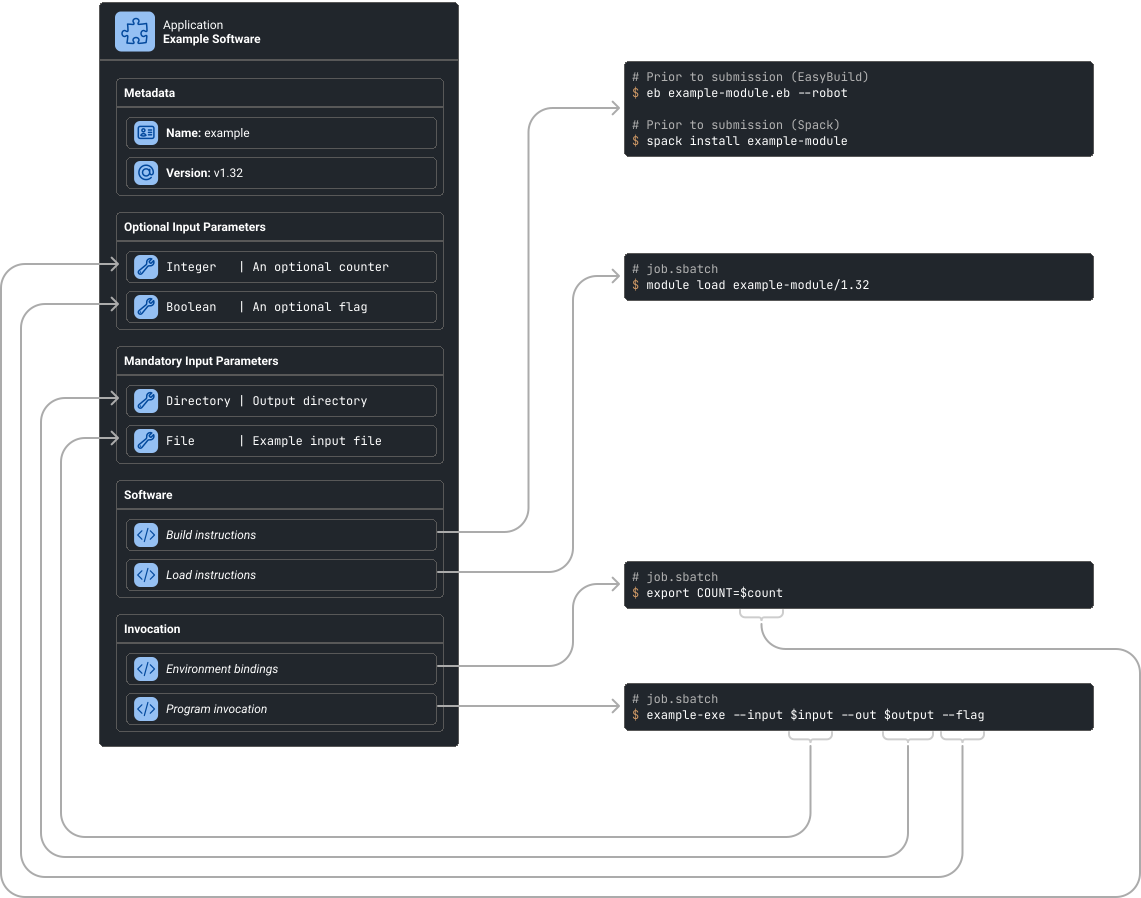
An application describes how to obtain, load and invoke a piece of software. This also includes a list of input parameters, both optional and mandatory which can be fed into the application.
Metadata
All applications contain a small section of metadata. This metadata includes an application name and version. These together form a unique identifier, which is transmitted to the service provider letting it know which application is being started.
The UCloud user-interface allows users to quickly swap between versions of the same application, as shown in the screenshot below. This also means that the name of an application should be considered stable. The name of an application is generally not shown directly to end-users.
Versions are ordered in UCloud based entirely on when they are uploaded to the platform. Thus the newest version is always considered to be the most recently uploaded version.
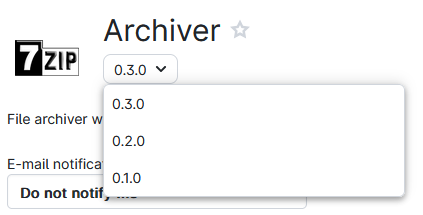
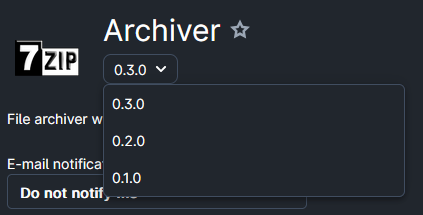
The version selector allows users to quickly switch between versions of an application.
Input Parameters
The input parameters of an application describe the input which a user can feed into it. Each input parameter type has an associated widget in UCloud specialized for that type of input. The exact types supported are listed in the reference. Input parameters can be either optional or mandatory. Their values are partially validated by UCloud before being forwarded to the service provider.
The values of the input parameters are fed into the invocation sections.
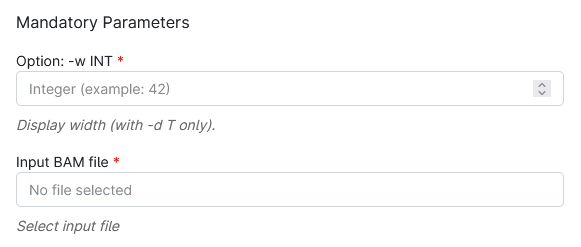
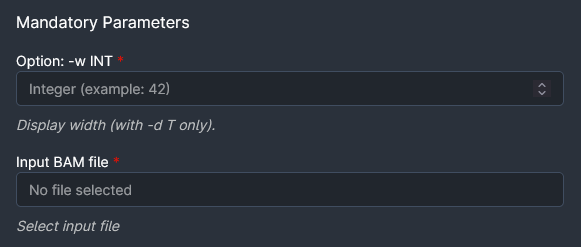
A selection of input parameters shown in the UCloud user-interface.
Invocation
The invocation sections accept the user input and produce output in the job submission script. This includes changes to the sbatch directives, binding environment variables and finally invoking the actual software. The invocation sections are written using Jinja2 templates. Refer to the reference and examples for details on how to write these.
Interactive Properties
Applications can also declare support for various interactive application backends. This includes web-based applications and remote desktop applications. These are shown in some of the examples below, but are not covered in this chapter.
Examples
This is an example application showing a non-customizable application using most of the features available in the application system.
# yaml-language-server: $schema=https://launcher-assets.cloud.sdu.dk/schemas/app
application: v2

name: "example-application"
version: "2026.1.0"

title: "My example"
documentation: "https://docs.cloud.sdu.dk/"
description: "My example applications"

software:
  type: "Container"
  image: "dreg.cloud.sdu.dk/ucloud-apps/example:2026.1.0" # This does not exist

features:
  multiNode: true
  links: false
  folders: true
  jobLinking: true
  ipAddresses: true

web:
  enabled: true
  port: 7681

ssh:
  mode: "Optional"

extensions: [".txt", ".md"]

parameters:
  shell:
    type: "Enumeration"
    title: "My preferred shell"
    description: "Select your preferred shell."
    defaultValue: "bash"
    options:
      - title: "Bash"
        value: "bash"
      - title: "Zsh"
        value: "zsh"
      - title: "Fish"
        value: "fish"
    optional: true

  feature:
    type: "Boolean"
    title: "Enable feature"
    description: "Do you want the feature? (default: false)."
    defaultValue: false
    optional: true

  modules:
    type: "Directory"
    title: "Modules path"
    description: "Import environment modules folder."
    optional: true

  initScript:
    type: "File"
    title: "Initialization"
    description: "Shell script to run during startup. File format: Bash script (.sh)."
    optional: true

invocation: |
  echo "Did you want the feature?" {{ feature }}
  echo "Your preferred shell is: " {{ shell }}
Reference
Metadata
The metadata section provides basic metadata about the document and the application contained within. This section is mandatory and placed at the top-level.
| Property | Type | Description |
|---|---|---|
application |
— |
Must be equal to |
name |
string |
The name of an application. This name must be unique, for a given application and remain stable across different versions of the application. By convention, this name should be written using lower-kebab-case. The name must not contain any type of whitespace. |
version |
string |
The version of an application. There can only be one application with a given |
Parameters
The parameters section contains the input parameters for a given application. Parameters are supplied in the
parameters top-level section. The top-level section has a type of map<string, parameter> where the key is the name
of the parameter. The parameter type is defined in this section.
| Property | Type | Valid for | Description | ||||||||||||||||||||||||
|---|---|---|---|---|---|---|---|---|---|---|---|---|---|---|---|---|---|---|---|---|---|---|---|---|---|---|---|
type |
string |
All |
The type of parameter. This controls the widget used in the UCloud user-interface along with validation logic. The type supplied controls how some properties of a parameter works. See the “Valid for” column in this table. The following types are available:
|
||||||||||||||||||||||||
title |
string |
All |
A human-readable title used for this parameter. This property should be short (less than 120 characters) and be limited to a single line. |
||||||||||||||||||||||||
description |
string |
All |
A human-readable description used for this parameter. The description can use limited markdown for markup, but it cannot use any HTML tags or references to external resources. The first-line is always shown without further interaction from the user. Lines beyond the first might require user interaction to show. |
||||||||||||||||||||||||
optional |
boolean (optional) |
All |
Default value: This property controls if a parameter is mandatory or not. If this property is not supplied or if
it is supplied with a value of |
||||||||||||||||||||||||
defaultValue |
Varies (optional) | All |
Default value: This property controls the default value of a parameter. The default value is used only if a parameter is optional and no value is supplied for the parameter. The type of the property should match the type of parameter. It is not possible to set default values for files or directories. |
||||||||||||||||||||||||
min |
int/float (optional) |
Integer, FloatingPoint |
Default value: This property controls the minimum value (inclusive) a numeric type can have. |
||||||||||||||||||||||||
max |
int/float (optional) |
Integer, FloatingPoint |
Default value: This property controls the maximum value (inclusive) a numeric type can have. |
||||||||||||||||||||||||
step |
int/float (optional) |
Integer, FloatingPoint |
Default value: This property controls the step size of clicking increment/decrement buttons in the user-interface for numeric inputs. |
||||||||||||||||||||||||
options |
{ title: string, value: string }[] |
Enumeration |
This property controls the options to show in the user-interface for an enumeration. Only options present in this property can be selected by the user. If a |
Software
The software section contains information about how to retrieve the required software. This is supplied in the
software top-level section.
| Property | Type | Description |
|---|---|---|
type |
string |
Must be |
image |
string |
Reference to the container image used for the application. |
Variables
All input parameters submitted to the job are available at the top-level using the same name as described in the
parameters section of the application. If a variable has a default value and none was supplied, then the default value
is made available. It is not possible to detect directly if a user supplied no value if a default is available. Normal
variables can be accessed with the following snippet:
{{ myParameter }}
Optional parameters for which the user did not supply a value, and the parameter has no default, will not be made available in the template. It is possible to detect if no value is supplied with the following snippet:
{% if optionalParameter == None %}
The optional parameter was not supplied
{% else %}
The optional parameter is {{optionalParameter}}
{% endif %}
Metadata about the job is made available through the ucloud top-level property. The properties in the ucloud
property are also automatically bound to environment variables using the same name but in UPPER_SNAKE_CASE. Thus
ucloud.machine.memoryInGigs becomes UCLOUD_MACHINE_MEMORY_IN_GIGS. The contents of the ucloud property is defined in
the table below:
| Property | Type | Description |
|---|---|---|
ucloud.jobId |
string |
The UCloud job ID. Note that this is supplied as a string, even though most job IDs are numeric. You should not depend on the IDs being numeric. The IDs are unique and do not change. An ID is never re-used at a given provider. Example: |
ucloud.machine.name |
string |
The name of the machine slice used for the reservation. Example: |
ucloud.machine.category |
string |
The name of the machine type (product category) used for the reservation. Example: |
ucloud.machine.cpu |
int |
The number of (v)CPUs available to the machine slice. This is retrieved from the product configuration and not from the actual compute nodes. Example: |
ucloud.machine.cpuModel |
string (optional) |
The model of the CPU available to the machine type used in the reservation. This is retrieved from the product configuration and not from the actual compute nodes. Example: |
ucloud.machine.memoryInGigs |
int |
The amount of memory available to the machine reservation in gigabytes. This is retrieved from the product configuration and not from the actual compute nodes. Example: |
ucloud.machine.memoryModel |
string (optional) |
The model of the memory available to the machine type used in the reservation. This is retrieved from the product configuration and not from the actual compute nodes. Example: |
ucloud.machine.gpu |
int |
The amount of GPUs made available to the machine type used in the reservation. This is retrieved from the product configuration and not from the actual compute nodes. Example: |
ucloud.machine.gpuModel |
string (optional) |
The model of the GPUs available to the machine type used in the reservation. This is retrieved from the product configuration and not from the actual compute nodes. Example: |
ucloud.webPort/ucloud.vncPort |
int (optional) |
If the application has requested a dynamic port allocation for a vnc/web-interface, then this property will contain a port which the application is expected to use. The dynamic port will be allocated such that it is highly unlikely to be in use on the node. Note that UCloud/IM cannot guarantee that this port is not in use. But UCloud/IM will attempt to not generate duplicates directly. This won’t stop users from, at random, running work listening on the same port. Applications should attempt to exit immediately in case such a conflict occurs. Ports are generated in the range between Example: |
ucloud.nodes |
int |
The number of nodes dedicated to the job. Example: |
ucloud.application.name |
string |
The name of the application being submitted. Example: |
ucloud.application.version |
string |
The version of the application being submitted. Example: |
Filters
The standard built-in filters of Jinja2 are supported along with the following custom filters:
| Filter | Description |
|---|---|
flag |
Signature: If the value passed into the filter is Example: |
option |
Signature: If the expression is not This function will always escape the value part for use in bash. Even when bound to an environment variable. If
Examples: |
Methods
The standard built-in methods Jinja2 are supported along with the following custom methods:
Control Structures
The templating engine supports the control structures of Jinja2, with the following exceptions:
{% extends ... %}has been disabled{% from ... %}has been disabled{% import ... %}has been disabled{% include ... %}has been disabled
Web Applications
The web-based interactive applications can be configured in the web top-level property. It has the following options available to it:
| Property | Type | Description |
|---|---|---|
enabled |
boolean |
If |
port |
int |
The port on which the web-application will listen. |
Remote Desktop Environments (VNC)
Remote desktop environments (via VNC) can be configured through the vnc top-level section. It has the following
properties available to it:
| Property | Type | Description |
|---|---|---|
enabled |
boolean |
If |
port |
int |
The port on which the web-application will listen. |
password |
string |
The password to the VNC server. This password is not used for security purposes. |
Inference servers
Applications can declare that they want access to UCloud inference servers through the inference top-level section.
If the section is omitted, UCloud behaves as if mode was None.
When inference is enabled, then UCloud creates short-lived API tokens for inference-capable providers available
to the user’s project. These tokens are passed to the provider as transient job resources of type api_server.
| Property | Type | Description |
|---|---|---|
mode |
None | Optional | Mandatory |
|
Example:
inference:
  mode: Optional
For container jobs, inference servers are exposed through environment variables in the user container. The JSON form is always emitted when one or more inference servers are available:
UCLOUD_INFERENCE_SERVERS='[{"server":"https://chat.example.com/v1","token":"uci-..."}]'
For shell scripts and tools that prefer simple variables, the Kubernetes integration also emits one pair of indexed variables per inference server:
UCLOUD_INFERENCE_SERVER_BASE_0="https://chat.example.com/v1"
UCLOUD_INFERENCE_SERVER_TOKEN_0="uci-..."
UCLOUD_INFERENCE_SERVER_BASE_1="https://other.example.com/v1"
UCLOUD_INFERENCE_SERVER_TOKEN_1="uci-..."
Features
Various optional features can be enabled through the features top-level section. These properties are described
by the table below. All properties in the features section have a default value.
| Property | Type | Description |
|---|---|---|
multiNode |
boolean (optional) |
Default value: This feature allows a user to add multiple nodes to a single job. This must be explicitly enabled for all applications which are capable of doing multi-node processing. |
links |
boolean (optional) |
This feature allows a user to add public links to a job. |
ipAddresses |
boolean (optional) |
This feature allows a user to add public IPs to a job. |
folders |
boolean (optional) |
This feature allows a user to additional folders to a job. |
jobLinking |
boolean (optional) |
This feature allows a user to link with other jobs on the same provider, allowing them to communicate with each other. |