
 UCloud
Inter-Provider File Transfers
TODO This is just the old document copy&pasted into the new documentation. The style of this document is not suitable for use here, but it at least reminds about roughly what should be going on in this chapter. Anyone asked to review the documentation should probably just skip this entire chapter for now.
User perspective
We start with an informal description of the feature from the perspective of a researcher. We assume that the researcher has two active resource grants, one at “Provider A” and one at “Provider B”. The researcher has already gone through the connection process and has thus already established a mapping between their UCloud identity and an identity at “Provider A” and another at “Provider B”. We also assume that “Provider A” and “Provider B” already have a legal framework in place which allows for this transfer to take place. Later in the story, we will highlight what happens if no such framework is in place.
To initiate the transfer, the researcher opens UCLoud and locates the file they wish to transfer. From here, they right click the file and select “Transfer to…”. This opens up a system dialog, similar to the one displayed when the user wants to move a file internally at a provider.
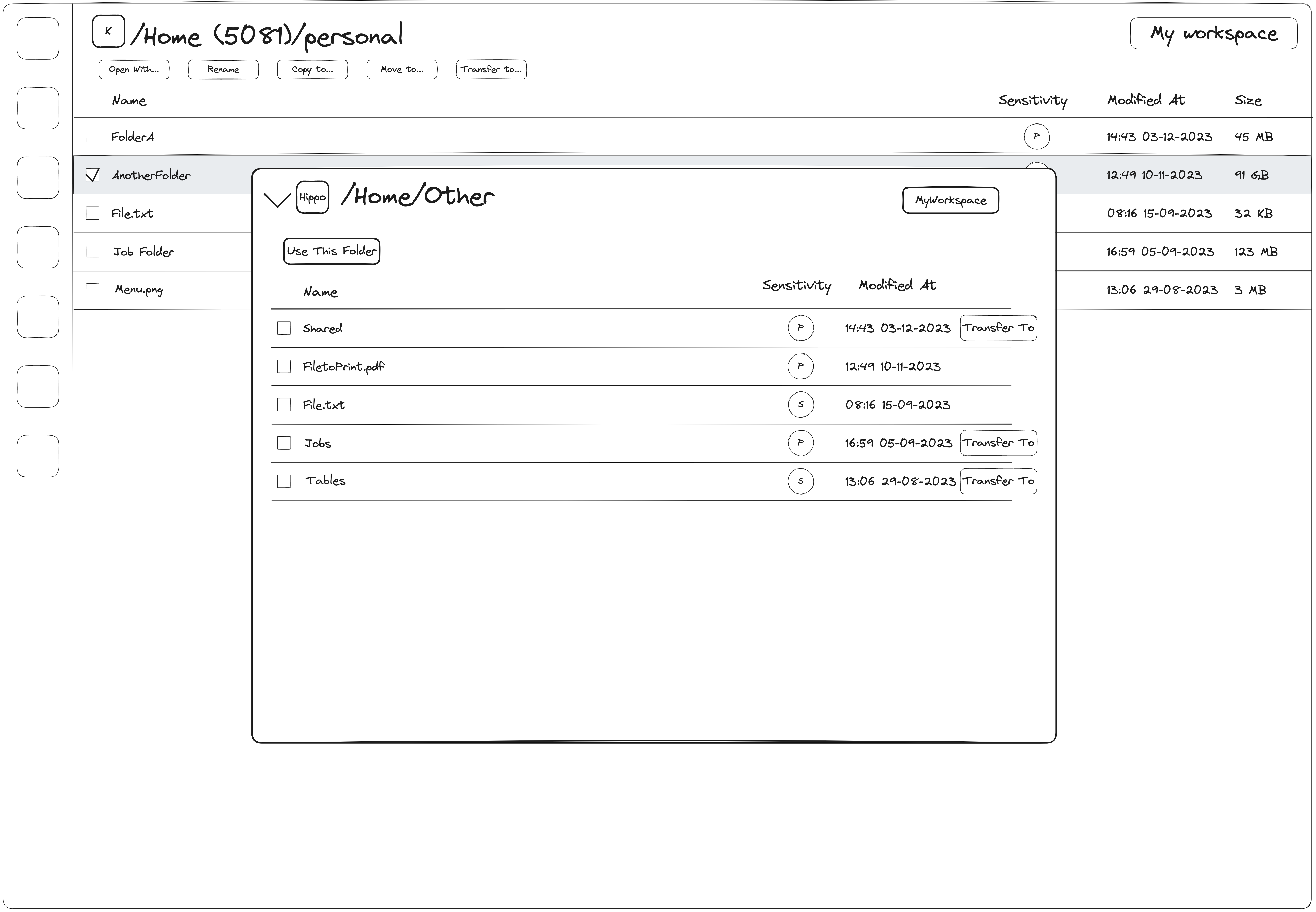
System dialog shown when a researcher selects “Transfer to…” on a file or folder.
Figure:
In this system dialog, the researcher can browse all the files they have access to. In this case, they navigate to a drive located at “Provider B”. Inside of this drive, they find their desired destination folder and select “Transfer to”. At this point, a message will appear explaining that a transfer between two separate service providers will take place.
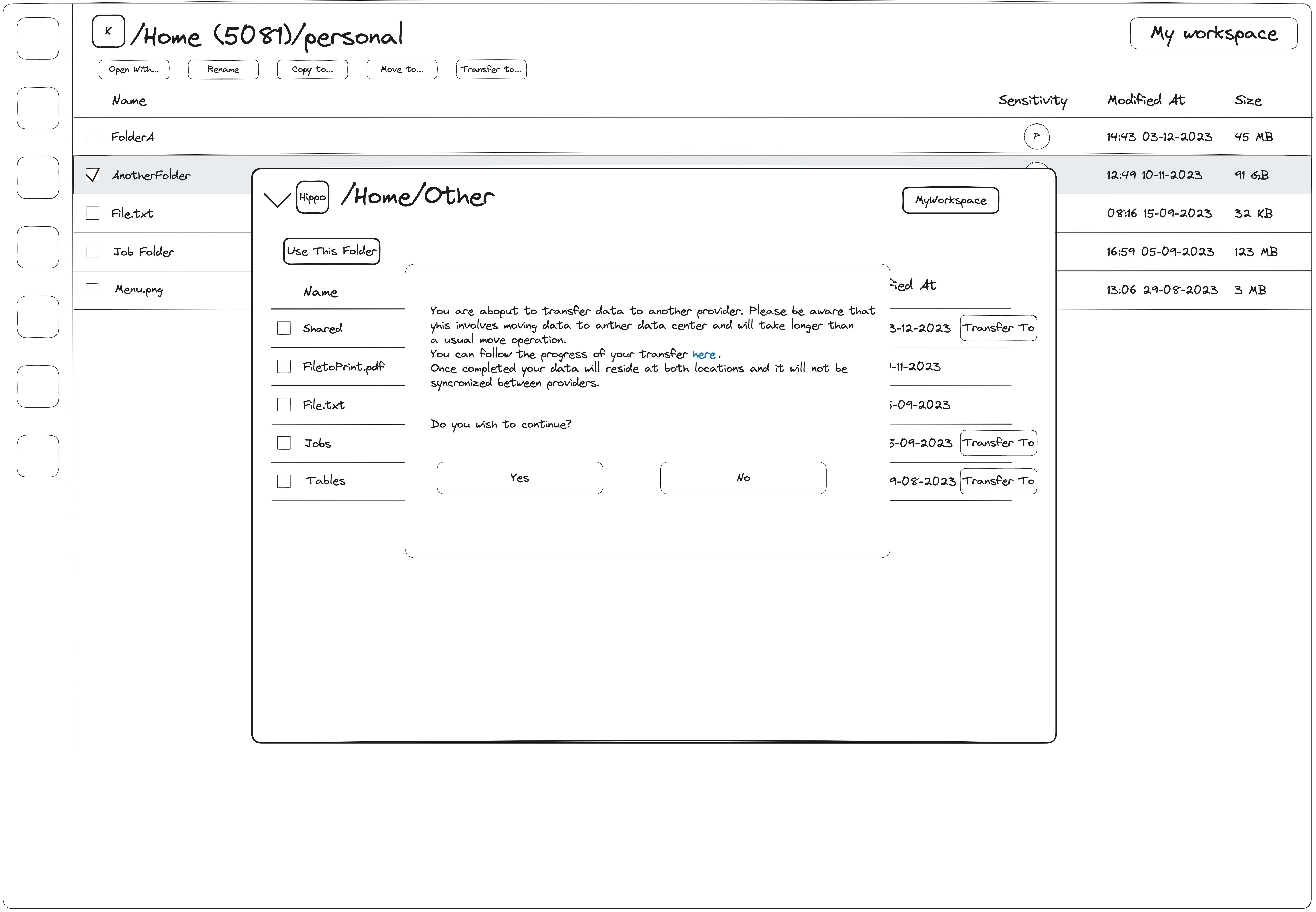
System dialog notifying the researcher that a transfer between two service providers is about to take place.
Once confirmed, the transfer will start with no further action required from the researcher. The researcher will be redirected to a page which displays status updates from all their active background tasks, including file transfers. This can include details such as overall progress through the transfer, a description of the current state. But it will also allow the user to perform actions such as pausing and cancelling a transfer.
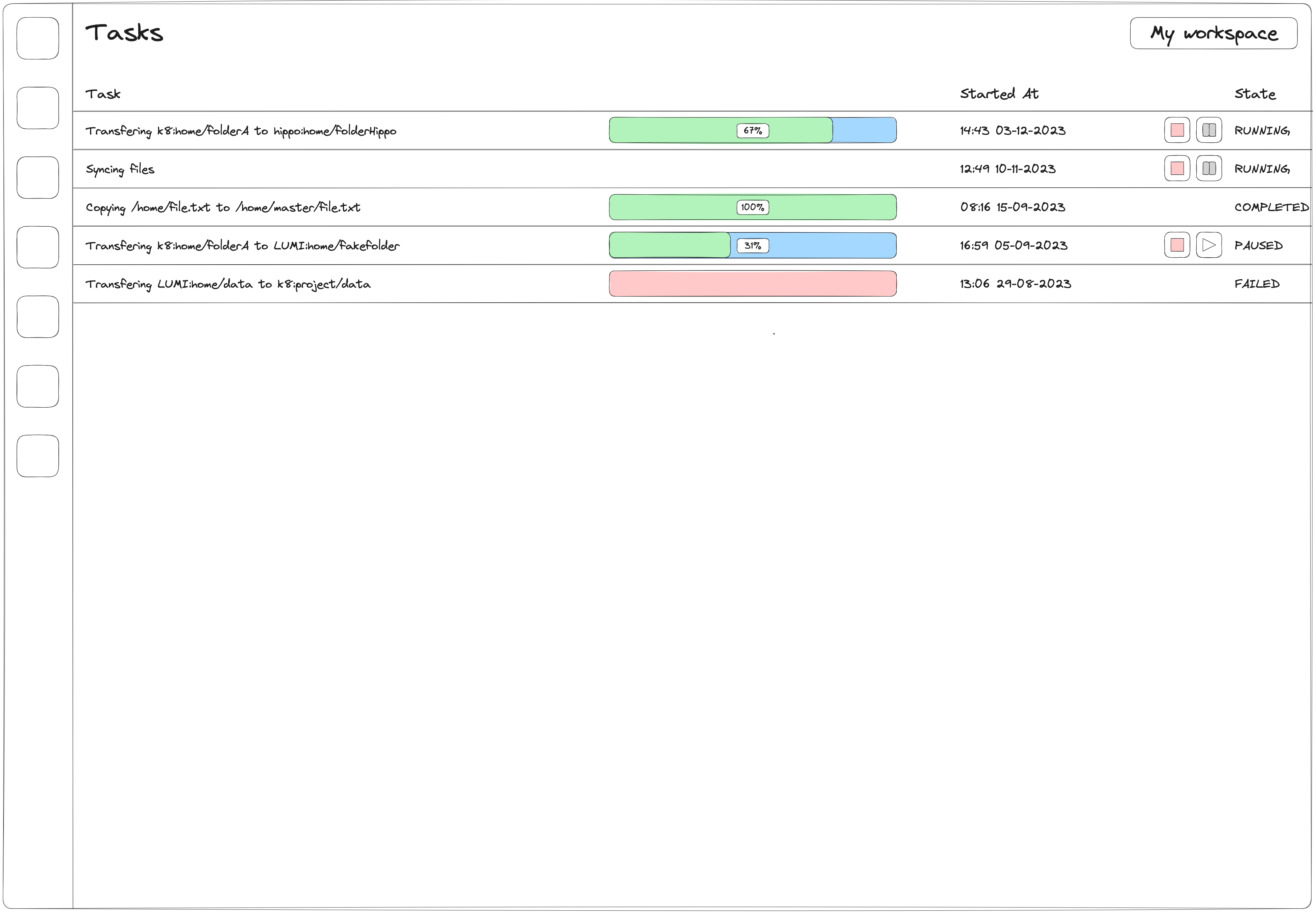
Dedicated page for background tasks. This will allow the researcher to follow the status of ongoing and previously completed file transfers.
Architecture
The architecture of the file transfer feature follows the general philosophy of UCloud/IM: to be flexible and support the existing infrastructure and solutions. This means that the feature must be able to support a wide variety of different protocols. The figure below demonstrates the flow required for a researcher to initiate a file transfer between “Provider A” and “Provider B”. Note that it reuses the assumptions from the story in the previous section.
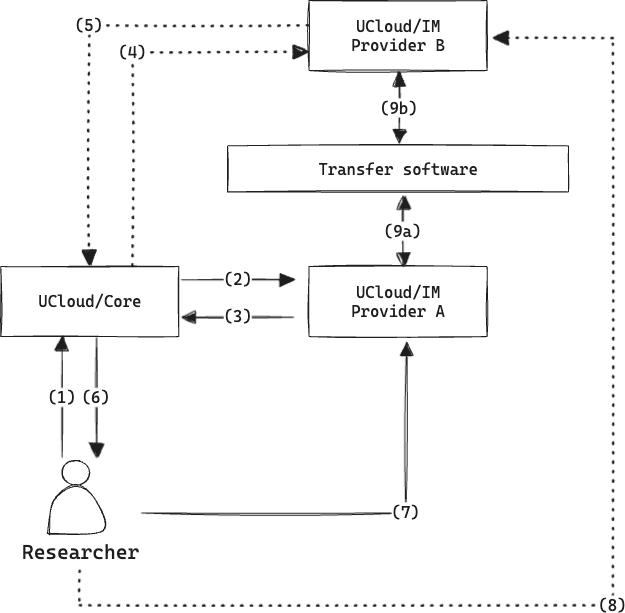
A diagram showing the steps involved in initiating a data transfer between “Provider A” (source provider) and “Provider B” (destination provider).
The process is initiated by the user, and is as follows:
-
The researcher initiates the transfer. The researcher will include information about the files they wish to transfer by including the full path to both source and destination folder.
-
UCloud/Core contacts the source provider. The Core starts out by authorizing the request. Making sure that the researcher has the appropriate permissions (according to UCloud’s permission model) before proceeding. Assuming the authorization step succeeds, the source provider is contacted about the transfer.
-
“Provider A” determines if and how the transfer will take place. Based on the provider’s configuration, a determination is made to ensure that the proper legal frameworks are in place and to determine which underlying transfer mechanism to use. If there is no proper framework for completing the transfer, then the request will be rejected and no data transfer will take place. If there is a proper framework, then a suitable technology for the transfer is chosen and the provider will reply with any relevant parameters for the transfer. This will also include a flag which tells UCloud/Core if it needs to consult the destination provider about the transfer.
-
(Optional) “Provider B” is consulted about the transfer. If the source provider indicated so, then UCloud/Core will consult the destination provider about the transfer. This message will include information from the researcher and the source provider.
-
(Optional) “Provider B” responds. Similar to how the source provider replied with parameters, so will the destination provider.
-
Parameters for the transfer is sent to the researcher. All the results are combined into a single reply and is sent to the researcher. The message will include all relevant parameters, including which mechanism is to be used for the transfer.
-
The researcher triggers the transfer based on the parameters by sending a message to “Provider A”. The exact message sent to the source provider will depend on the transfer mechanism. In some rare cases, the user might need to provide input for this step.
-
(Optional) If needed, the researcher sends a trigger message to “Provider B”.
-
The providers exchange data in a protocol specific way.
Security considerations
The providers involved in the transfer have an oppertunity to send parameters required for the transfer. In some cases, this information can potentially be sensitive (directly or indirectly) and UCloud/Core should not know this information. Given that UCloud/Core is required for the orchestration of the transfer, and thus, data must flow through it, we propose a solution utilizing asymmetric cryptography to hide the information from UCloud/Core while still allowing transit of information through it.
This works by having the client, controlled by the researcher, generate a public-private key-pair. When the researcher initiates the transfer, in step 1, they will include a copy of their public-key. This key will allow the providers to encrypt the sensitive parameters in such a way that only the researcher can use the information.
We recognize that this solution does not prevent a compromised version of UCloud/Core from sending its own ‘evil’ parameters encrypted with the researchers public key. But as we will later show, the trigger messages sent based on the sensitive parameters will not themselves contain sensitive data. As a result, a compromised version of UCloud/Core has little to gain from doing so.
Exploring mechanisms for file transfers
Based on the needs of the current partners in the HALRIC project, we have come up with a list of potential technologies to support for transferring files. The majority of the mechanisms discussed here are all widely available and are often already present in many HPC systems.
SFTP
SFTP, also known as the SSH File Transfer Protocol, is a network protocol for remote file access and management. As the name implies, the protocol is co-developed as part of the SSH protocol. SFTP provides operations for common file operations such as:
- Listing files
- Retrieving detailed file information, including access lists
- Read and write files
- Delete files
The protocol is typically deployed as part of an SSH server deployment. As a result, it depends on the authentication mechanisms already provided by the SSH server. SFTP is very commonly enabled on SSH servers and is, by default, enabled in OpenSSH servers.
The most common way to use the SFTP protocol is using command-line utilities such as scp. For example, one can
initiate a transfer of a single file with the following command:
$ scp /path/to/local/file user@remote-server.example.com:/path/to/remote/file
SFTP allows for compression of payloads, which can minimize the amount of data sent. This is, for example, enabled via
the -C flag. Apart from compression, SFTP provides no extra smart features for transferring large amounts of data
efficiently.
In order to transfer files with SFTP, one must be able to connect with and authenticate against the remote SSH server. As a result, for the end-user to initiate a file transfer the following technical conditions must be met:
- The destination provider must allow the ingoing SSH connection from the source provider
- The source provider must allow the outgoing SSH connection to the destination provider
- The user at the source provider must be able to connect to the destination provider as their corresponding user
rsync
rsync is a utility made specifically for transferring and synchronizing files between systems. rsync is only capable of performing synchronization of files. Unlike SFTP, it performs checks to minimize the amount of data transferred. This includes checking if a file is already present by looking at basic attributes such as file size, modification timestamps and checksums.
The rsync command can be used in the following way:
$ rsync -azP /path/to/local/file user@remote-server.example.com:/path/to/remote/file
A snippet showing how to invoke rsync. It has the “archive” flag (-a) which perserves certain file
attributes. Compression is turned on with the -z flag. Progress wil be shown to the end-user due to the -P flag.
Similar to SFTP, it commonly uses SSH as the underlying transport protocol. As a result, it also inherits the security model of SSH.
To use rsync between two providers, the following conditions must be met:
- The destination provider must allow the ingoing SSH connection from the source provider
- Alternatively the native rsync protocol may be used
- The source provider must allow the outgoing SSH connection to the destination provider
- Alternatively the native rsync protocol may be used
- The user at the source provider must be able to connect to the destination provider as their corresponding user
- rsync must be present at both the source and destination provider
SFTP/rsync implementation
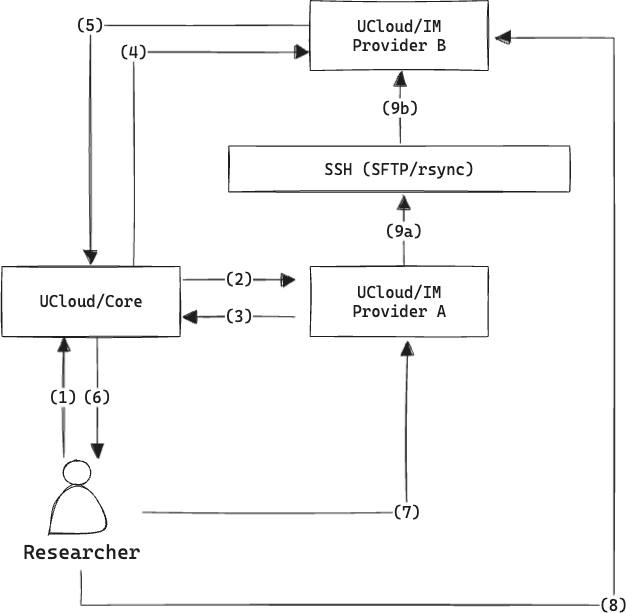
Example showing how a file transfer mechanism based on SSH could work.
-
The researcher initiates the transfer. For this transfer mechanism, it is very important to remember that the researcher includes a public-key used for asymmetric encryption of secrets.
-
UCloud/Core contacts the source provider.
-
“Provider A” determines if and how the transfer will take place. In this case, the provider determines that the transfer is possible and should use an SSH based transfer mechanism (SFTP or rsync). The provider creates an endpoint which allows for the insertion of a temporary key. This endpoint is encrypted using the public-key of the researcher. This means that UCloud/Core will not be able to read the secret endpoint, only the researcher will be able to read it.
-
“Provider B” is consulted about the transfer.
-
“Provider B” responds. Provider B also creates a secret endpoint and encrypts it using the public-key of the researcher.
-
Parameters for the transfer is sent to the researcher. The frontend will as a response to this message determine that it needs to create a temporary key-pair used for the SSH transfer. In the following trigger messages the researcher will forward the public part of this key-pair. This key-pair is different from the one used to facilitate the transfer.
-
The researcher triggers the transfer based on the parameters by sending a message to “Provider A”. This message will contain the public part of the key-pair previously generated.
-
The researcher sends a trigger message to “Provider B”. This message will contain the public part of the key-pair previously generated.
-
The providers exchange data in a protocol specific way. Data transfer begins immediately once both providers have a key. Due to the way SSH based transfers work, it is initiated and managed by the source side. The key used for the transfer is automatically deleted once the transfer is complete (or a timeout is reached).
Globus
Globus is a service which delivers file management feature amongst many service providers. It requires an existing installation, and often, a premium subscription, already present at the service provider. Once a service provider is connected, then end-users can access data from any of the service providers they already know and perform file management as needed, including transferring the files between individual services. The service supports many different “connectors” which allow it to access data using different underlying mechanisms.
Integrating into Globus is made possible using their REST-style API. One way of integrating Globus into UCloud is by creating a provider. End-users can then connect to Globus using their institutional credentials, the same they would use for Globus. Once connected, the provider will be able to expose the data to the end-user in a similar way as it is exposed in Globus. In such a scenario, the UCloud provider would act as both the source and destination provider of a transfer. Also note that the service providers actually containing the data would not need to be directly connected to UCloud/Core.
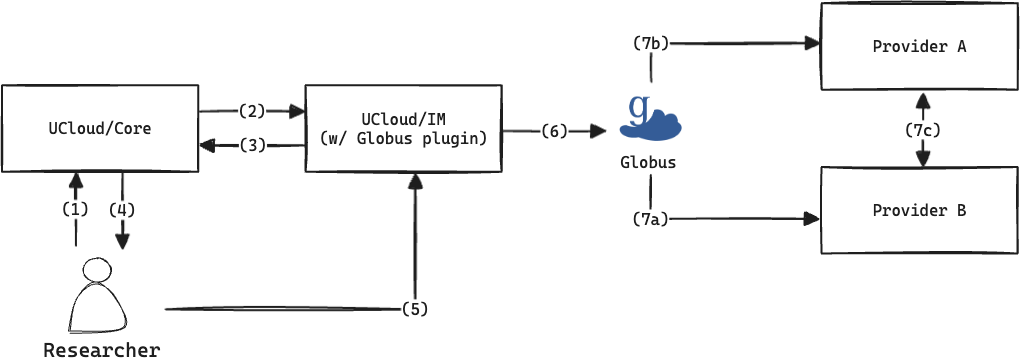
Example of how a Globus integration could work.
The figure above illustrates how an integration with Globus could work:
-
The researcher initiates the transfer. This will contain information about the absolute paths to both files. Encoded in these would be information about the SPs connected to Globus.
-
UCloud/Core contacts the Globus provider. As in the normal flow, the source provider is contacted.
-
The Globus provider determines if and how the transfer will take place. In this case it will tell us that the Globus transfer will be used. A trigger endpoint is forwarded to the researcher. The trigger endpoint will need no special parameters.
-
Parameters for the transfer is sent to the researcher.
-
The researcher triggers the transfer. In this case, the trigger message will likely be empty, since no special instructions are required for this transfer mechanism.
-
The Globus provider will use the Globus API to initiate the transfer. This will trigger an actual transfer of files. From this point forwarded, the task is essentially complete for the integration module. The integration module will periodically track the progress of the transfer and send updates back to UCloud/Core.
-
Globus will orchestrate the transfer between the two service providers. The exact mechanism of how the transfer will take place depends on Globus. It is considered a black box from the point-of-view of the integration module.