
 UCloud
Filesystem Integration
In this chapter we are going to cover how UCloud/IM for Slurm integrates with your local distributed filesystem. We will start by covering the concept of UCloud drives and how these are mapped to your local environment.
Software and Hardware Requirements
UCloud/IM for Slurm targets POSIX-compliant distributed filesystems. It will use the standard APIs to open, close, read and write to both files and directories. In other words, any normal filesystem on which you can run your normal command line tools should be compatible with UCloud/IM.
$ cd /home/donna01
$ echo 'Hello' > file.txt
$ cat file.txt
Hello
$ ls -la
total 2
drwxr-x---  2 donna01 donna01 4096 Jul 12 10:38 .
drwx------ 15 donna01 donna01 4096 Jul 12 10:38 ..
-rw-r-----  1 donna01 donna01    6 Jul 12 10:38 file.txt
$ rm file.txt
$ ls -la
drwxr-x---  2 donna01 donna01 4096 Jul 12 10:38 .
drwx------ 15 donna01 donna01 4096 Jul 12 10:38 ..
UCloud/IM targets POSIX-compliant filesystems. If you can use the normal command-line tools to interact with it, then it should work.
Recall from a previous chapter that UCloud/IM for Slurm spawns an instance for each user, which
will run as the real local identity. This also means that all filesystem permissions will be governed simply by the
normal permission model. Thus, if Donna#1234 has a local identity of donna01 then all files created by her will be
owned by donna01. She will also only be able to access files she has the appropriate permissions for.
To ensure proper file permissions when collaborating, the UCloud/IM instance will always create
files using a umask value of 0007. This ensures that the group (i.e. the rest of the project)
will be able to access any newly created files.
UCloud/IM does not make any attempts to modify file ACLs, but any ACLs set manually will be enforced. UCloud/IM will recommend an owner, group and permissions for all drives, these are as follows:
| Project type | Owner | Group | Mode |
|---|---|---|---|
| Personal | ${localUsername} | ${localUsername} | 0700 |
| Project | root | ${localGroupName} | 2770 |
The permissions recommended by UCloud/IM for drives, these are consumed by integrations and are generally followed as closely as possible.
It is a requirement that filesystems are mounted consistently across all relevant nodes (frontend and compute). Similar
to how it is a requirement that identities (UIDs and GIDs) are consistent across all relevant nodes. Thus, if you are
able to view your home directory at /home/donna01 on the frontend, then it must be available at /home/donna01 on all
relevant compute nodes.
Virtual Drives
UCloud has a concept of (virtual) drives. A drive in UCloud is simply a named entrypoint to your files, UCloud itself does not impose any requirements on what a drive is specifically backed by, only that it is a meaningful entrypoint.
In most HPC environments, we commonly find a few different entrypoints. For example, you might have a /home
folder containing your own personal files. On top of that, you usually have a different entrypoint when you are
collaborating with others. This could, for example, be one or more shared project workspaces stored in different
folders.
In order to explain this better, we will be looking at an example from the point-of-view of our test user
Donna#1234. Donna is currently a member of three projects: “My sandbox project”, “Experimental research” and a
personal project (a special type of project containing exactly one member).
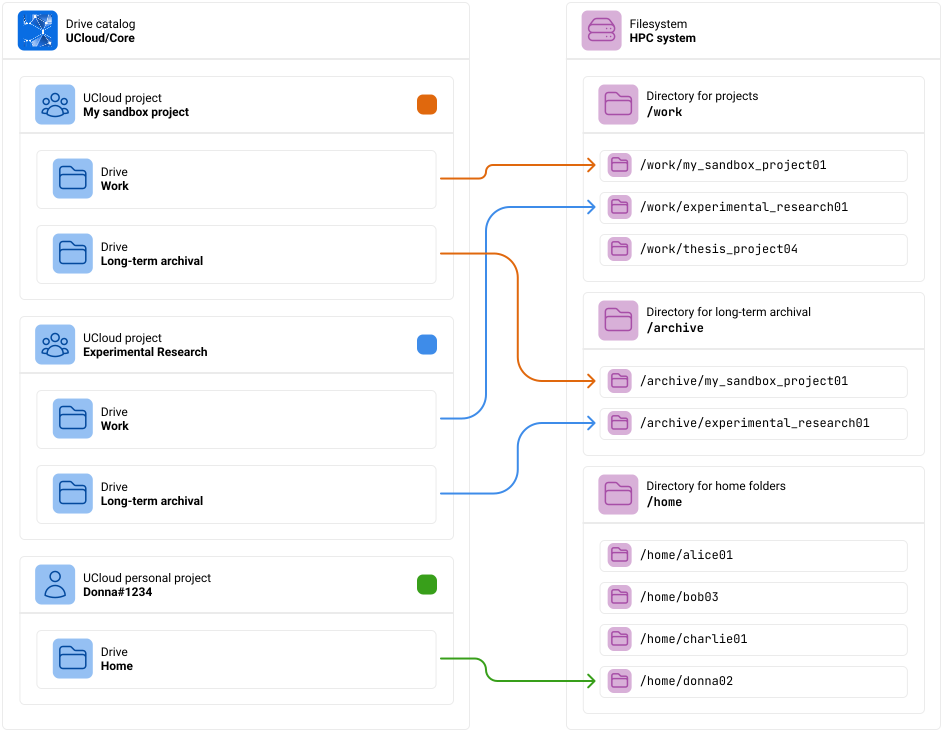
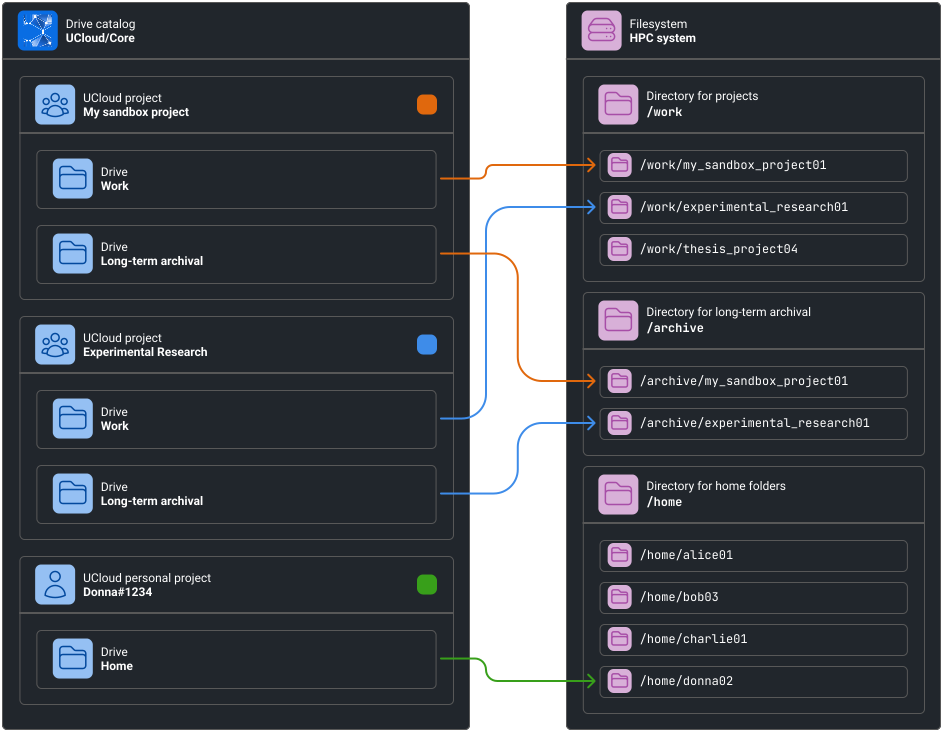
Donna is a member of three different projects. Each project has its own set of drives. Each drive is mapped to a specific folder on the HPC system’s filesystem.
The colored square next to each project indicate the color of the corresponding arrows.
In this case, the HPC system has three different root-directories for entrypoints:
/work: A directory for shared files used for projects/archive: A different filesystem which has been configured such that it is suitable for long-term archival of files/home: A directory for personal files
Donna has for each of her ordinary projects, gotten space in both /work and /archive. For her personal project, she
has a some space in /home. Donna can switch between different views by selecting a different project. This makes it
very easy to differentiate between different sets of folders as they relate to a given project.
Configuring Drive Locators
The mapping process, from a drive to a specific folder, is called drive location in UCloud/IM. The bootstrap process
from the installation guide has already configured some for you, but these can be further tweaked.
Drive locators are configured in the main service configuration file (typically /etc/ucloud/config.yml) as part of
the fileSystems service.
Drive Locators
Drive locators can be configured for different types of entity. Depending on the entity various variables are
made available to you for use in the location of a drive. You have a choice between using the pattern property or the
script property. Using the pattern property will allow you to easily do string interpolation and return a path.
The script property instead allows you to fully customize the returned path. In either case, the same variables
are available to you.
services:
  type: Slurm

  fileSystems:
    hpc-storage: # This is the name of your product
      driveLocators:
        home:
          entity: User
          pattern: "/home/#{localUsername}"
          title: "Home"

        projects:
          entity: Project
          script: /opt/ucloud/scripts/locateProjectDrive
          title: "Work"

    # This provider has decided that the archival filesystem requires a separate
    # grant allocation. As a result, they have created a separate product for it.
    archive:
      driveLocators:
        archive:
          entity: Project
          pattern: "/archive/#{localGroupName}"
          title: "Long-term archival"
Configuration of three drive locators. Two of them use the hpc-storage product, these point to /home and
/work. The last one uses a different product called archive which points to /archive. Different products require
separate resource allocations.
Variables
| Entity | Variable | Description |
|---|---|---|
| Always available | locatorName | The name of the drive locator (e.g. home or projects) |
| Always available | categoryName | The name of the product category (e.g. hpc-storage or archive) |
User | ucloudUsername | The username of the UCloud identity (e.g. Donna#1234) |
User | localUsername | The username of the local identity (e.g. donna03) |
User | uid | The corresponding UID of the local identity (e.g. 41235122) |
Project | ucloudProjectId | The UCloud ID of the project (e.g. 94056ba8-b752-4018-8aab-d1caa5bc86aa) |
Project | localGroupName | The local group name of the project (e.g. my_sandbox_project01) |
Project | gid | The corresponding local GID of the project (e.g. 5234281) |
Integrations
GPFS
GPFS (also known as “IBM Storage Scale” or “IBM Spectrum Scale”) is a parallel filesystem developed by IBM. This integration will allow for automatic creation and management of filesets. UCloud/IM will create exactly one fileset per drive. The quota is automatically adjusted to match the allocated resources in UCloud.
The integration has been tested against IBM Spectrum Scale 5.x and it works by using the IBM Storage Scale management API endpoints.
Creating a Service Account
A service account is needed to communicate with the REST API. Navigate to the IBM Spectrum Scale web interface and click on Services in the menu. After clicking the GUI tab on the left you should see the following interface.
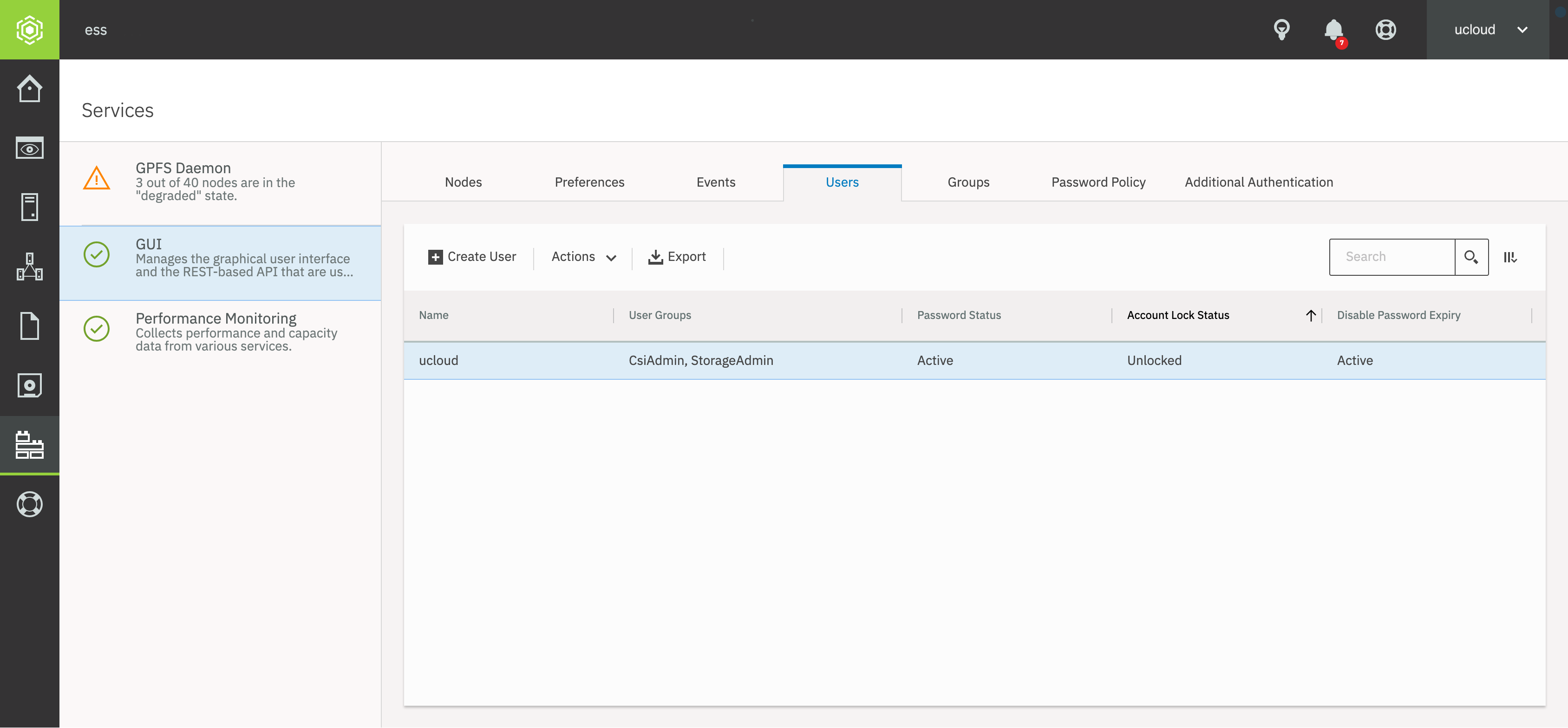
User management in the IBM Spectrum Scale web interface.
Click Create user in the menu to create a new service account, which will open the window showed below. Choose a username and a password for the service account and select Disable Automatic Password Expiry. Assign one or more user groups, such that the service account has privileges to create filesets and manage quotas. Which user groups are necessary depends on the local configuration, in the example below we have chosen the StorageAdmin and CsiAdmin groups.
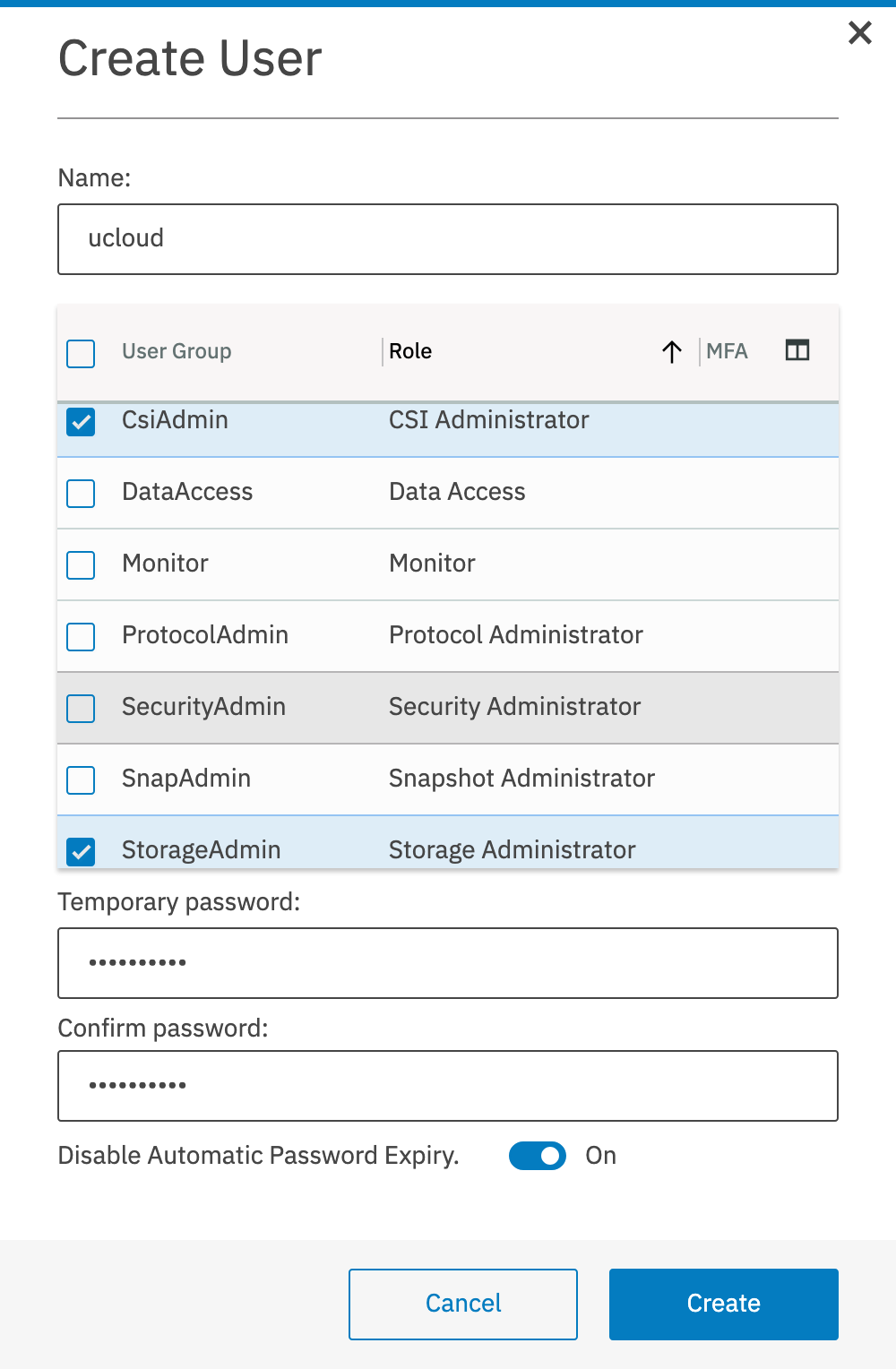
User creation in the IBM Spectrum Scale web interface.
Configuring the integration
Start by enabling the GPFS integration in the identityManagement section in /etc/ucloud/config.yml:
services:
  type: Slurm

  fileSystems:
    my-gpfs-storage:
      management:
        type: GPFS
The GPFS integration is enabled by setting the management.type variable to GPFS. As previously explained, the section my-gpfs-storage is the name of the product category and it can be chosen freely by the provider.
Additional configuration is provided in /etc/ucloud/secrets.yml. If this file is not already present, then it can be
created using the following commands:
$ sudo touch /etc/ucloud/secrets.yml
$ sudo chown ucloud:ucloud /etc/ucloud/secrets.yml
$ sudo chmod 600 /etc/ucloud/secrets.yml
The secrets.yml file has special permissions which must be set correctly.
Inside the file, the gpfs section can be used to configure the integration.
gpfs:
  my-gpfs-storage: # This is the product category name
    username: ucloud
    password: ucloudpassword
    verifyTls: false
    host:
      address: <spectrum-scale-host>
      port: 443
      scheme: https
    mapping:
      home: # This is a locator name
        fileSystem: gpfs
        parentFileSet: home
        # This has the same variables as the drive locator has
        fileSetPattern: "home-#{localUsername}"
      projects:
        fileSystem: gpfs
        parentFileSet: work
        # This has the same variables as the drive locator has
        fileSetPattern: "work-#{localGroupName}-#{gid}"
      archive:
        fileSystem: gpfsarchive
        parentFileSet: archive
        # This has the same variables as the drive locator has
        fileSetPattern: "archive-#{localGroupName}"
The configuration required for GPFS. Remember to change the values such that they match the target environment.
The above example shows how to configure UCloud/IM to communicate the the IBM Spectrum Scale system and how drives can be mapped onto different filesystems. Let’s try to break it down.
- The name
my-gpfs-storagemust match the name chosen inconfig.ymlfor the product category. - Next we have the
usernameandpasswordfor the previously created service account. We also have thehostsection to configure the endpoint for accessing the REST API. - Under
mappingwe have the different products available to the users, such as home folders, workspace folders, and archive folders. The variablesfileSystemandparentFileSetshould match an existing filesystem and fileset on the storage system. The variablefileSetPatternshould match up with thedriveLocatorsused in theconfig.ymlfile.
Breakdown of operations executed by UCloud/IM
In this section we will break down the exact operations invoked by UCloud/IM when managing GPFS. This section is intended to help you understand how UCloud/IM will interface with your system and in which situations it might conflict with other systems.
It is important to understand that this is all that the GPFS integration will do. GPFS can be configured and used outside UCloud/IM and as long as it does not conflict with the content of this section, the UCloud/IM will not interfere with those entities.
| Trigger | Description | ||||||||||||||||||||||||||||||||||||
|---|---|---|---|---|---|---|---|---|---|---|---|---|---|---|---|---|---|---|---|---|---|---|---|---|---|---|---|---|---|---|---|---|---|---|---|---|---|
| Resource allocation updated |
Note: This trigger also runs when a resource allocation is first created. The trigger will run after the user or group has been created in the system. See the User and Project Management chapter for more details. 1. Evaluate the relevant drive locators The drive locators, explained earlier in this chapter, are first run to get a list of expected drives. The drives are then matched up with the corresponding mappings defined in the GPFS configuration. Using the examples provided in this chapter, the following information is discovered:
This process will also return appropriate permissions, owner and group. 2. Check if the filesets exist This process is repeated all filesets discovered in step 1. If the response code is in the 2XX range then we consider the fileset as existing, otherwise we do not. 3. Create filesets which do not exist This process is repeated for all filesets we did not find in GPFS from step 2. This step is skipped if all filesets exist. 4. Update the quota This process is repeated for all filesets located in step 1. If UCloud/Core is reporting over-consumption in a project hierarchy, then usage should not be allowed to continue. This
is implemented by setting the quota on files to 0 ( |
||||||||||||||||||||||||||||||||||||
| Usage reporting (invoked periodically) |
1. Query the current usage and fileset This step is repeated for all known drives in the entire system. First a request is sent to retrieve information about the fileset. This is followed up with an additional query for information regarding quota and usage: 2. Report usage to UCloud/Core Based on the numbers found by step 1, a report is sent to UCloud/Core describing the usage. In case this leads to a change in the over-consumption flag anywhere then a notification is emitted by UCloud/Core. Such a notification will trigger the “Resource allocation updated” process. |
Scripted (any filesystem)
This integration is another script integration. Script integrations allow you to fully customize all aspects of
drive management. It is entirely up to you to create these scripts. All scripts will be invoked with a single
argument, which is a path to a JSON file. The contents of the JSON file will depend on the script, see below for
details. All scripts are expected to return the response as a JSON object on stdout. Detailed error messages and
debug information should be printed to stderr. In case of errors a non-zero exit code should be returned.
In order to configure this integration, you must first configure it:
services:
  type: Slurm

  fileSystems:
    storage:
      type: Scripted
      onQuotaUpdated: /opt/ucloud/scripts/storage/onQuotaUpdated
      onUsageReporting: /opt/ucloud/scripts/storage/onProjectUpdated
      usageReportingFrequencyInMinutes: 1440 # Once a day
The Scripted integration is enabled by setting the type property of a filesystem to Scripted and providing
the relevant scripts.
Note that the scripts pointed to in the configuration file is your choice. You can point it to any script of your choosing. The script does not have to reside in any specific folder. The script must be readable and executable by the UCloud/IM (Server) user. They do not have to be invoked by any of the user instances.
The usageReportingFrequencyInMinutes determine how frequently the onUsageReporting script is invoked. This value
should be set depending on fast the onUsageReporting script can determine the usage of a drive. If this action is
fast, then we recommend setting the value to 15. If it is slow, then we recommended setting it accordingly at, for
example, once per day (1440 minutes).
Script: onQuotaUpdated
The output of drive locators, explained earlier in this chapter, are provided to the onQuotaUpdated script. This
script is invoked every time a relevant update happens to a resource allocation. This includes the first time that
the resource allocation is created.
The script is expected to perform the following actions:
- It must ensure that the drive is properly created. The drive must be available as a directory at
drive.filePath. - It should ensure that the owner of the directory is set to
drive.recommendedOwnerName. - It should ensure that the group of the directory is set to
drive.recommendedGroupName. - It should ensure that the mode of the directory is set to
drive.recommendedPermissions. - It must ensure that the quota associated with this folder is set to
quotaUpdate.combinedQuotaInBytes. - It must ensure that the drive can be used if
quotaUpdate.combinedQuotaInbytes > 0andquotaUpdate.locked = false - It must ensure that the drive cannot be used if
quotaUpdate.combinedQuotaInbytes = 0orquotaUpdate.locked = true
| Request |
|
|---|---|
| Response |
No response required |
| Example request |
|
| Example response |
No response |
Script: onUsageReporting
Basic information about drives are given as input to this script. This script is invoked periodically and must determine
the usage of a given drive and return the result in bytes. The script will be invoked at least once every
usageReportingFrequencyInMinutes minutes. Several onUsageReporting scripts can run in parallel and no ordering of
the drives are guaranteed. The script may also be invoked on-demand by the integration module in response to actions
taken by the user.
| Request |
|
|---|---|
| Response |
|
| Example request |
|
| Example response |
|